Build an approval chain
Multi-level approval chains by location and category, with amount thresholds and an over-budget step.
Go to Users › Approval Chains.
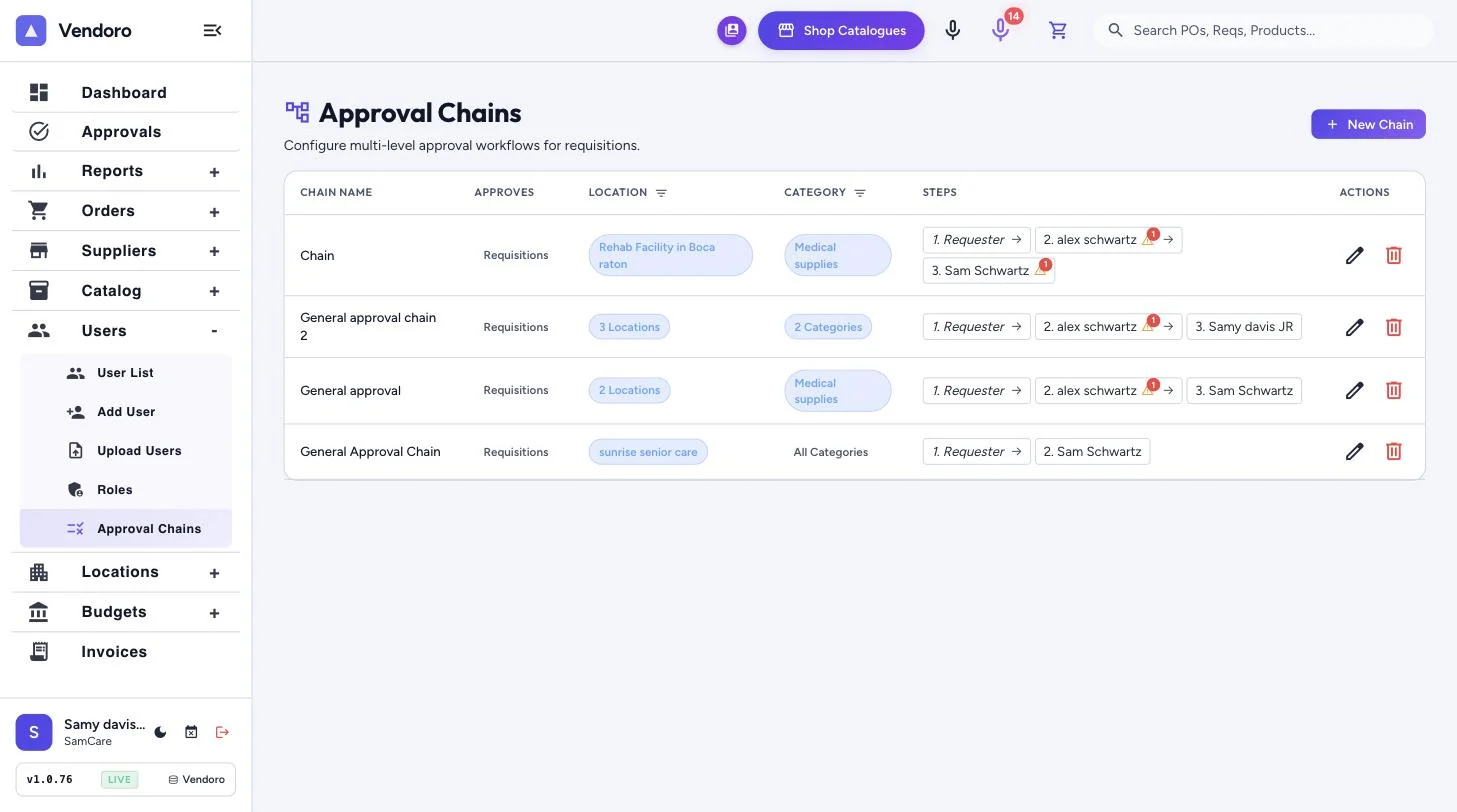
Each chain shows its name, what it approves, the locations and categories it covers, and its steps, for example Requester → Regional director → CFO. New Chain adds one.
How chains are set
- What it approves: requisitions or invoices. You choose when you create the chain and can’t change it afterwards.
- Locations and categories: pick one or more locations and top-level categories. Leave either blank to cover all of them, including ones you add later.
- Steps: step 1 is always the requester, filled in for you. Add approvers after it.
- Amount thresholds: tick Require step only if this order amount exceeds this dollar amount on a step. Orders under the amount skip it.
- Over-budget step: tick Only require step if order exceeds budget so a step applies only to orders that would go over budget.
- Skip this step for people who may order without approval lets people with that right go straight to a purchase order.
A step is skipped when its approver is the person who raised the order. Approvers need the Approve requisitions or Approve invoices right, depending on what the chain approves.
Which chain applies
Only one chain applies to an order. A chain that names the order’s location or category wins over a catch-all chain. If no chain matches, the requisition is approved straight away.
Before sending, the button shows whether the order needs approval (Send for Approval or Create POs). Once it’s saved, the requisition shows its chain and steps. Approvers find what’s waiting for them on the regular Pending Requisitions and All Invoices pages; see Approve requisitions and invoices.
Auto-approval for invoices
Clean invoice matches under a limit can approve automatically. Turn it on in Invoices › Invoice Settings; see Capture and match an invoice.