Orders and shipping
Confirm, change and ship purchase orders.
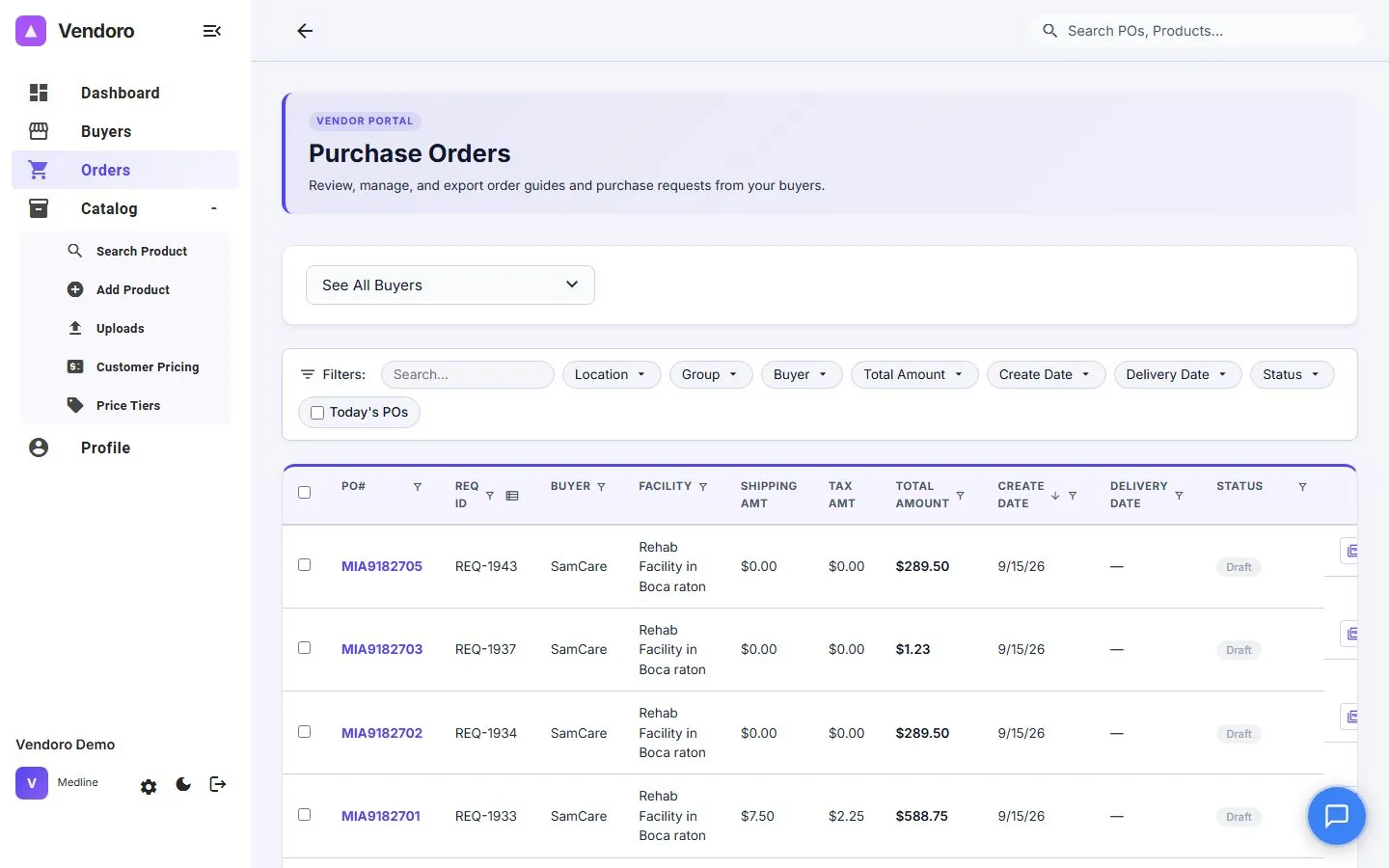
Purchase orders from every connected buyer land in one list instead of in an email inbox. You see only orders sent to your company; a buyer you aren’t connected to yet shows up as a connection offer on the dashboard (see The supplier portal at a glance). Choose a buyer, or See All Buyers, then filter by location, group, buyer, dates, amount and status. Today’s POs shows only today’s.
Click a PO number, or double-click an order, to open it, with Print PDF. An order’s status reads Sent, Confirmed, Shipped, Received, Closed or Cancelled along the way; Edited marks one you’ve changed, and clicking it compares the edit with the original.
Confirm
Choose Confirm Receipt on an order, or Confirm on the dashboard. To confirm several, select them and right-click for Confirm Receipt.
Change an order
Open Edit PO to change a line’s quantity or price, replace an item with another product, remove a line, change shipping and taxes, or change the delivery date and PO Notes (Visible to Buyer). Each line shows what the buyer has already received. If you change a price, choose whether it applies to This Order Only, becomes a Buyer-Specific Override, or is saved to the buyer’s Pricing Tier. When you save, the buyer is emailed, and both of you can open Compare Changes to see the edit beside the original.
Ship
- Send to Shipping marks the whole order shipped.
- To ship in part, open Edit PO, choose Backorder / Split shipment on a line, then Confirm Shipments and save. The buyer is emailed about the change.
PDFs and invoices
Download a PDF of any order, or select several and print them as one PDF. Each order’s Invoices button is where you invoice it; see Invoices and payment status.