Capture and match an invoice
Get invoices in, check for duplicates and match them to the order and receipt.
Go to Invoices › All Invoices. The Invoices menu also holds Emailed Invoices, Routing Rules, Export to Accounting, Accounting Setup and Invoice Settings; you see the ones your rights allow.
Getting invoices in
- + Upload Invoice: upload a PDF or scan the invoice with a phone. AI reads it and detects credit memos; the original stays beside the fields, and you can correct any field before saving. Saving the same file twice is refused.
- Emailed: suppliers email invoices to your company’s invoice address. See Emailed invoices.
- From the vendor portal: the supplier submits it from the purchase order.
Invoices with no purchase order, such as service invoices, follow the same coding and approval.
The invoice list
All Invoices shows invoice number, supplier, customer account, net amount, tax, total, status and match result. Flags such as Needs GL and “1 line not yet received” show what’s holding each one up. Filter by supplier, source, and questions (Waiting on vendor, Vendor replied).
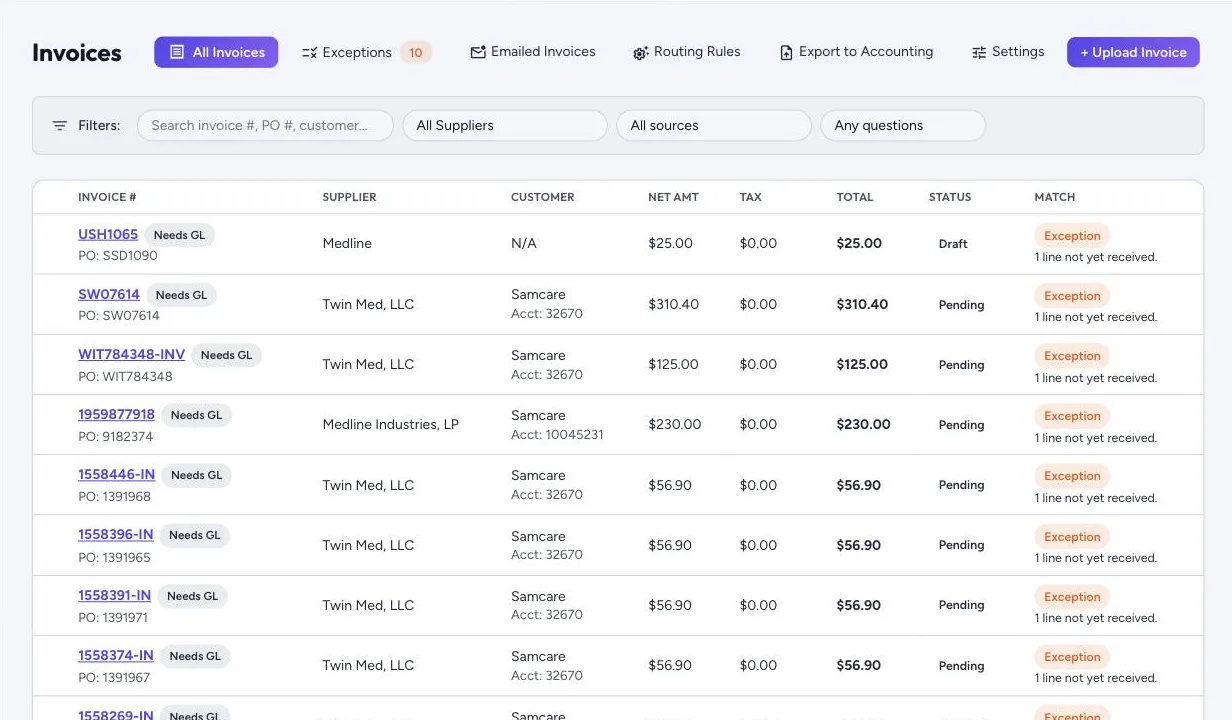
Vendoro checks for duplicates on supplier and invoice number, and warns about the same total in the same week.
Matching and exceptions
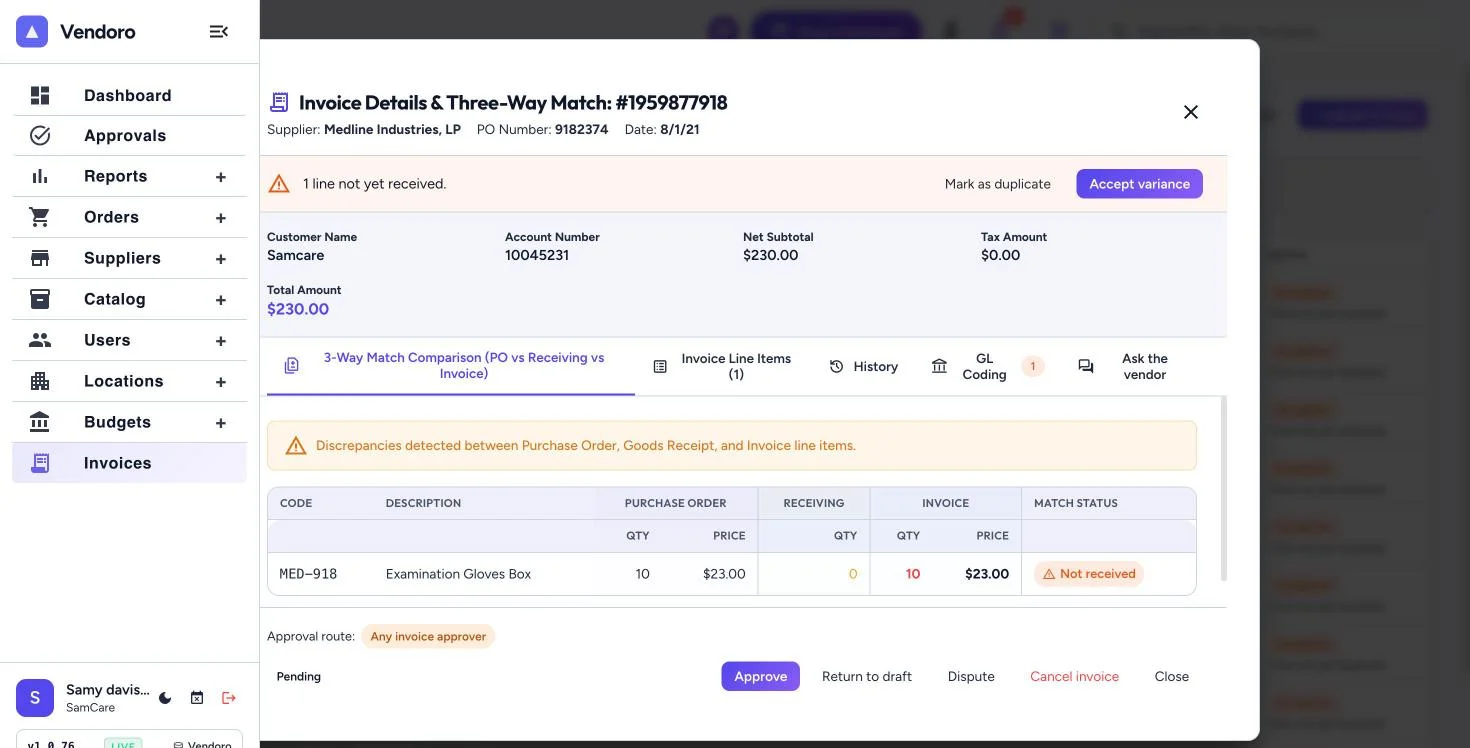
Each invoice is checked against its purchase order’s prices (within 2% or $1, whichever is larger) and against what was received. Invoices without a purchase order show No PO. Anything that doesn’t match is listed under Exceptions, which you can filter by reason and which the dashboard counts as “invoices not matching their order”. To change the tolerances, contact support.
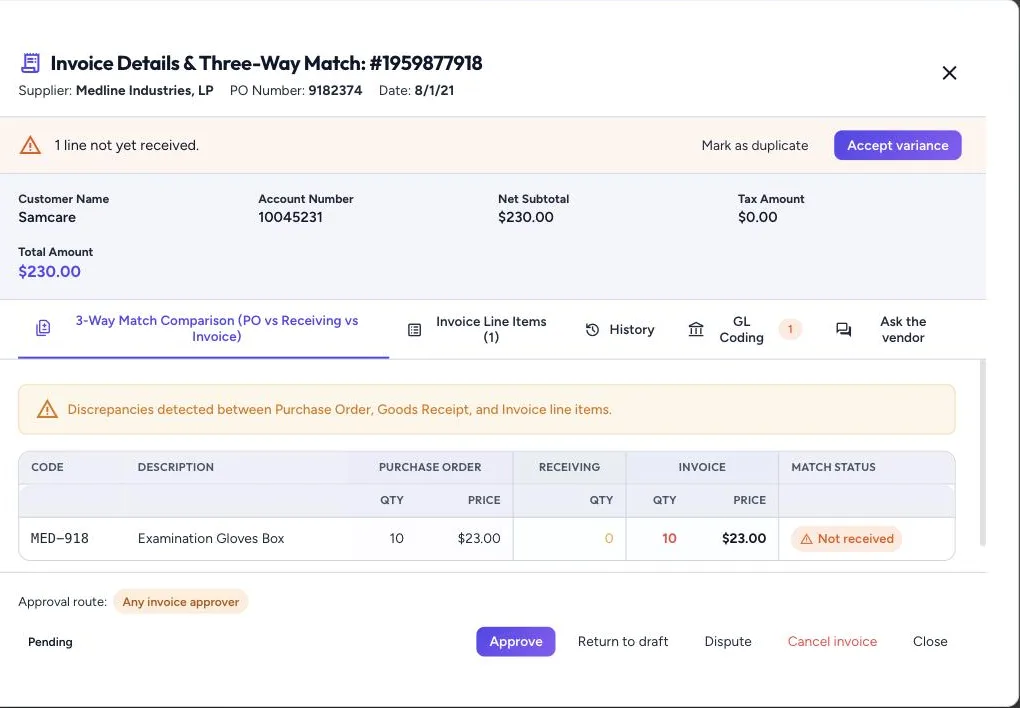
An exception blocks approval until someone chooses Accept variance or Mark as duplicate, each with a reason.
Open an invoice and its 3-Way Match tab sets the order, receiving and invoice side by side, grouped by Quantity (ordered, received, invoiced), Unit price and Line total (ordered and invoiced). Use Compare to show Everything, only Quantities, or only Prices & totals.
Invoice settings
Invoices › Invoice Settings:
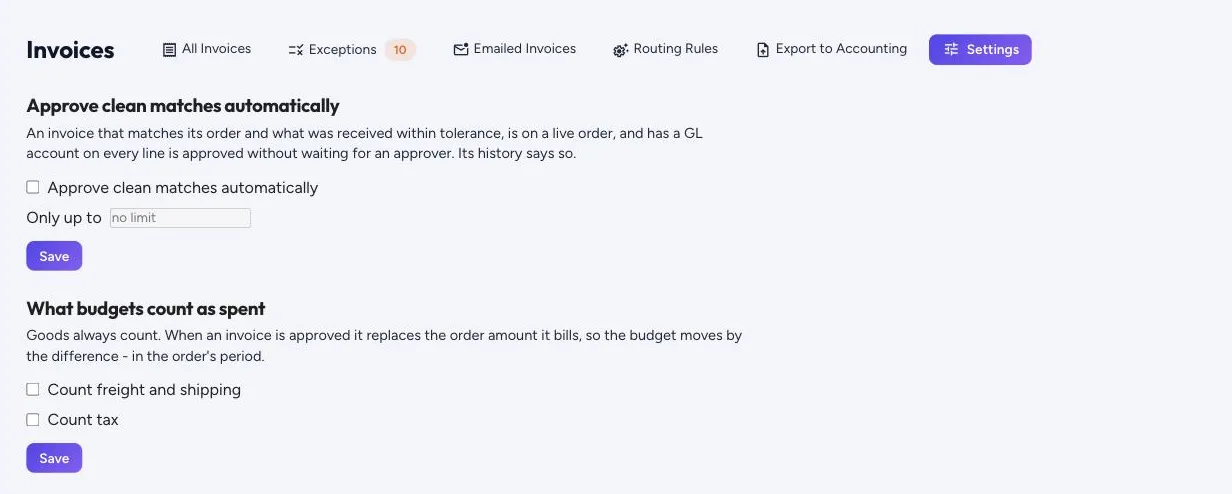
- Approve clean matches automatically, only up to an amount you set. Changing it needs the right to approve invoices. A clean match agrees with its order and what was received, is on a live order, and has a GL account on every line. Its history records that it was approved automatically.
- What budgets count as spent has moved to Budgets › Budget Settings; see Budget settings.
Invoices waiting for approval are on All Invoices; the dashboard’s “invoices waiting for your approval” line opens it showing only the ones waiting for you.
Next: code it, let it follow the approval chain, and export it.