Users and roles
Add users one by one or from a spreadsheet, assign locations and roles, and manage invitations.
Adding users
- Users › Add User adds one person: first and last name, Cell Number, Email (Username), SMS consent, the locations and categories they work with, and their role. The categories limit what they can order.
- Users › Upload Users adds a list from a spreadsheet.
After you save, choose Send Invitation to email them a password setup link, with an optional message, or Skip / Close and send it later with Send Invite in the user list. They show as Pending until they accept.
The user list
Users › User List shows name, email, phone, locations, categories, role and status. Use Show to switch between active users, pending users, both, or everyone including inactive users. From each row you can Send Message, Send Invite, set someone as out of office, edit, or Delete them. Select several and right-click to change role or status, invite or delete in bulk.
Deleting or deactivating someone who approves requisitions opens a handover: pick who takes over their approvals and record a reason.
Roles
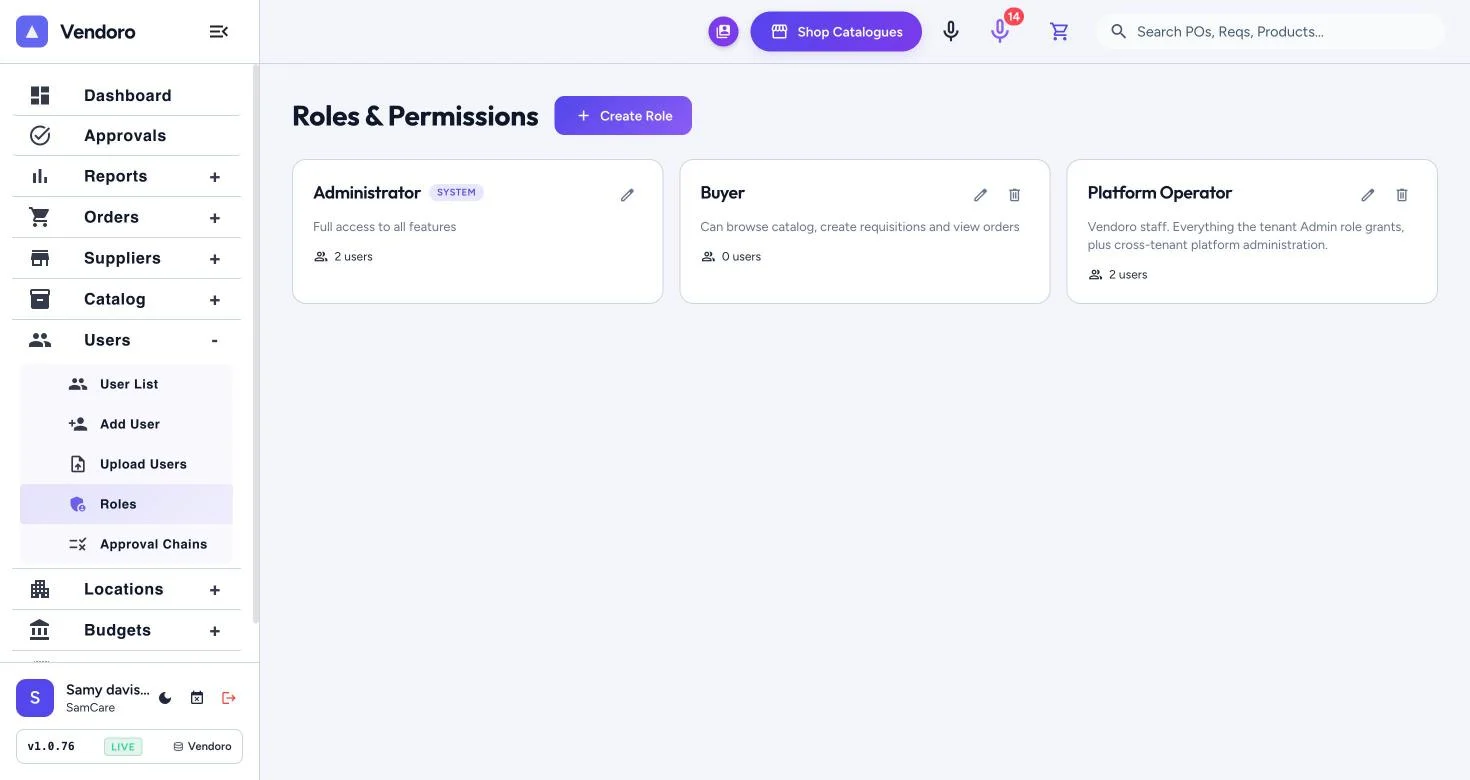
Users › Roles opens Roles & Permissions, with each role in your company and how many rights and users it has:
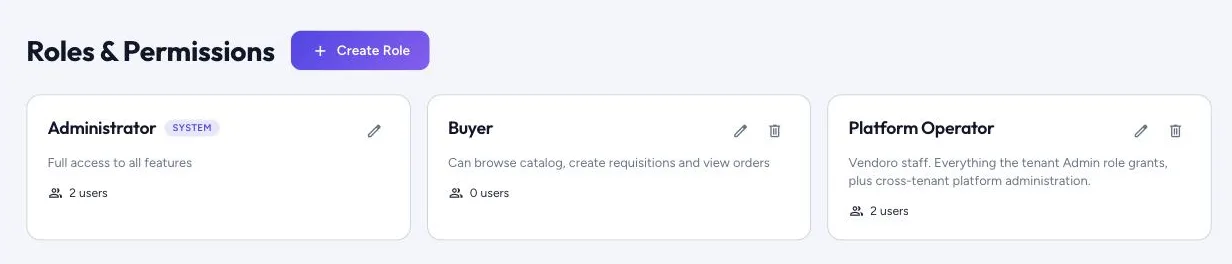
- Administrator: full access to all features.
- Buyer: can browse the catalog, create requisitions and view orders.
- Viewer: can see everything but change nothing.
- Create Role builds your own.
A role has four tabs:
- Basic Info: the role’s name and description. Built-in roles can be renamed and changed, but not deleted.
- Action rights: things a person can do, grouped into sections.
- Section rights: the other rights, grouped by area such as Catalog or Invoices. Open all, Close all and Open in use expand the groups.
- Related users: who holds the role. Tick or untick people to move them in or out.
One search box finds a right on either rights tab.
Each action needs its right. If someone can’t order, approve, receive, run reports, manage budgets or use the AI assistant, an administrator adds the right to their role here. Requisitions are raised in the person’s own name unless their role has Create requisitions on behalf of others.
Users see only the locations they’re assigned to, unless they have unrestricted access. A user with no locations assigned sees all of them, and shows as All Locations in the list.