Export to accounting
Export approved invoices in batches, set up QuickBooks and Sage Intacct, and mark invoices paid.
Go to Invoices › Export to Accounting. Approved invoices go into export batches. You need the Export invoices to accounting right.
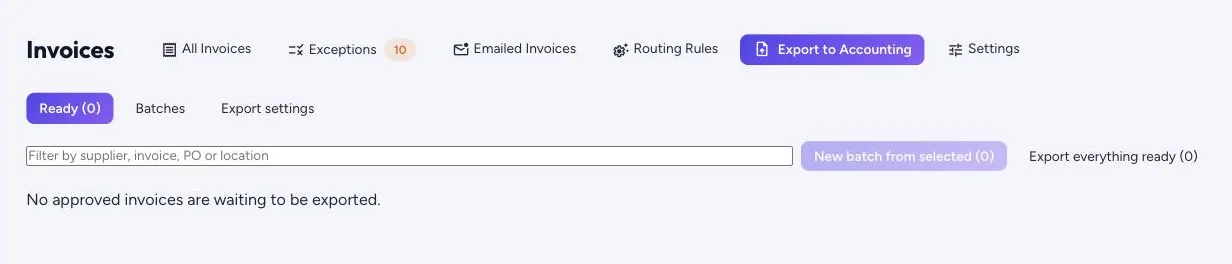
- Under Ready, choose invoices and make a New batch from selected, add them to an open batch, or use Export everything ready to make and release a batch in one step.
- Release batch marks its invoices Exported. A batch can’t be released while any invoice is uncoded or doesn’t add up.
- Download the file for your system, Download CSV, Download QuickBooks Desktop (IIF) or Download Sage Intacct, and import it. If the import fails, Reopen the batch.
Accounting setup
Invoices › Accounting Setup needs the Manage integrations right. Switch on the accounting systems you use; Export to Accounting offers files only for those. Choose Manage on a system to set it up.
- QuickBooks Online: Connect to QuickBooks and sign in at Intuit. Vendoro never sees your QuickBooks password. Check connection and Disconnect are here too. Vendoro doesn’t send vendors or bills to QuickBooks Online yet; until it does, export invoices from Invoices › Export to Accounting.
- QuickBooks Desktop: the accounts payable account, and whether to send the order’s location as the QuickBooks class.
- CSV file: one row per invoice line, for any other accounting system.
- Shared export settings: the sales tax account (or spread tax over each invoice’s accounts), and the name of each GL account in your accounting system.
Sage Intacct
Each released batch downloads as a Sage Intacct bill import file (Accounts Payable > Bills > Import). Under Accounting Setup › Sage Intacct:
- Supplier vendor IDs and Location IDs: type each one, or use Read Sage Intacct vendor list… or Read Sage Intacct location list… to match them by name from a file. Check them, then Save IDs. Sage Intacct refuses a bill whose vendor it doesn’t know.
- Chart of accounts from Sage Intacct: read an exported chart of accounts. New account numbers are added as GL codes and changed titles updated once you choose Add and rename. Nothing is deleted.
- Paid bills from Sage Intacct: read an export of paid bills and mark the same invoices paid here, after seeing what will change. This needs the right to approve invoices.
Marking invoices paid
Once accounting has paid, someone who can approve invoices can Mark paid one invoice, several at once, or a whole batch with Mark batch paid, with the date and a cheque or transfer reference. Suppliers see the paid status and reference in the portal.
A direct Sage Intacct connection is coming soon. Connections to NetSuite, Dynamics and Yardi are planned. Paying suppliers stays in your accounting system.