Price tiers
Create price tiers, load prices into them, and assign them to buyers.
A price tier is a named price list, such as “Volume Discount”, that you assign to buyers, location groups or single locations.
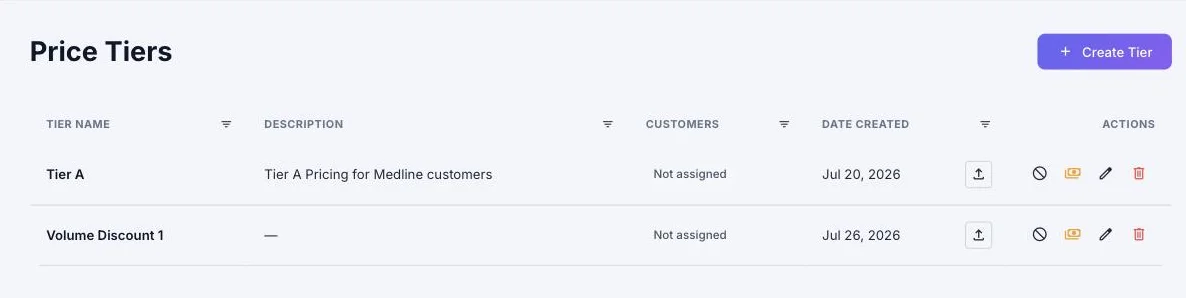
Create a tier
Catalog › Price Tiers › Create Tier: a name, an optional description, and Tier is active. The list shows each tier’s customers (“Not assigned”, one name, or “Used by” a count) and its actions: export, upload prices, activate or deactivate, edit prices, edit details, and delete.
A tier that’s assigned to any buyer, group or location can’t be deleted; unassign it first.
Put prices in a tier
- Edit prices directly: a list of your products with the base price and the tier price. Type a price and it saves when you leave the box; clear the box to remove it. Filter to products with or without a price.
- Upload prices:
- Select a CSV or Excel file (Download Example Template shows the layout).
- Map Columns: item code, description and price are matched for you; change any match.
- Resolve Kickouts: rows with a missing item code, description or price, a product that isn’t in your catalog, or a duplicate item code. Fix them and Submit Fixed Items, or Skip Kickouts.
- Upload Complete!
- Export a tier’s prices to Excel at any time.
Which price a buyer sees
A customer price override always wins, then the buyer’s tier, then your standard catalog price. Catalog › Customer Pricing shows each product’s resolved price for a buyer and which tier it came from.
When you change a tier price, connected buyers on that tier are charged the new price on orders priced after the change. Each buyer decides whether your orders are priced on the order date or the delivery date.
Assign tiers on each buyer’s Pricing Tiers tab; see Your buyers.