Categories and GL accounts
The category tree, GL codes per category and location, and tax-exempt settings.
Categories
Catalog › Categories holds the category tree, such as Medical supplies, Dietary, Housekeeping and Activities, with sub-categories underneath. Each row shows its level, GL code, whether it’s tax exempt, and its status.
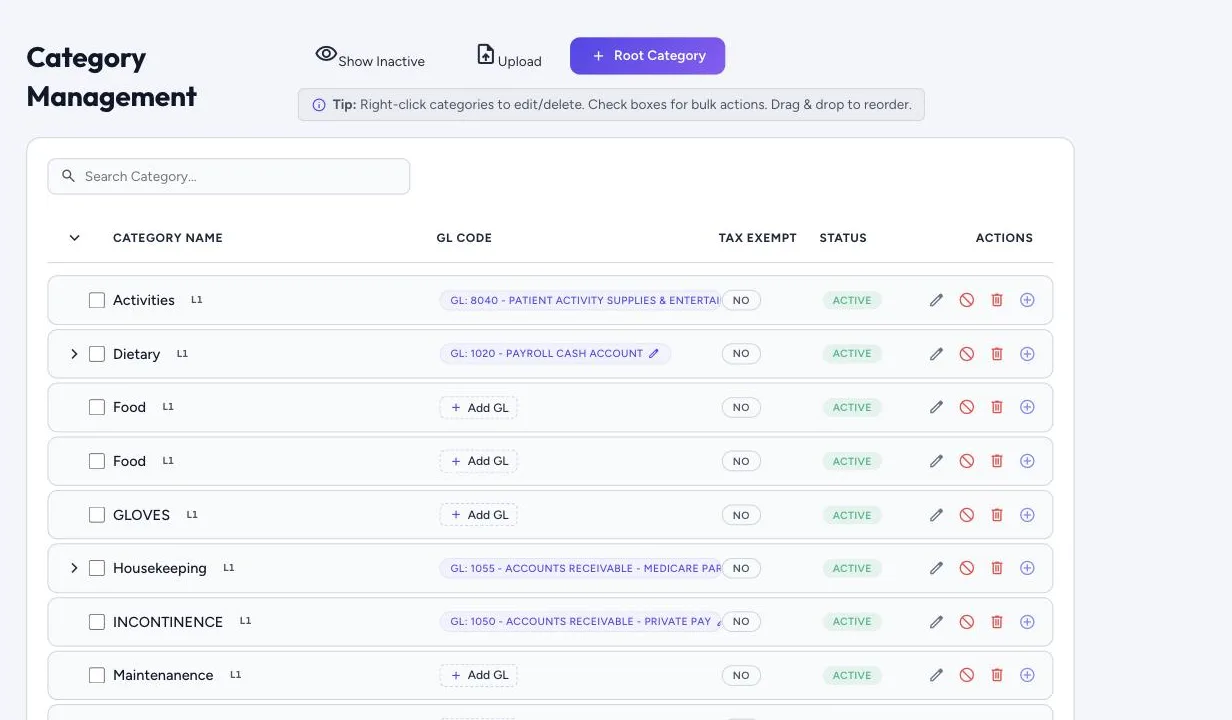
- Root Category adds a top-level category; the add button on a row adds a sub-category.
- Right-click a category, or use the buttons on its row, to edit, delete, add a sub-category, or switch it on or off. Tick boxes for bulk actions; drag and drop to reorder. Categories go up to four levels deep.
- Click a category’s GL badge to set its default GL code, and a different code for any location.
- Tax exempt carries down to sub-categories unless they say otherwise.
- Show Inactive brings back categories you’ve switched off.
- Catalog › Upload Categories loads a whole tree from a spreadsheet.
Budgets and approval chains can be set by category.
GL accounts
Catalog › GL Accounts lists your GL codes and names, the category each is assigned to, the locations it applies to, and whether it’s tax exempt.
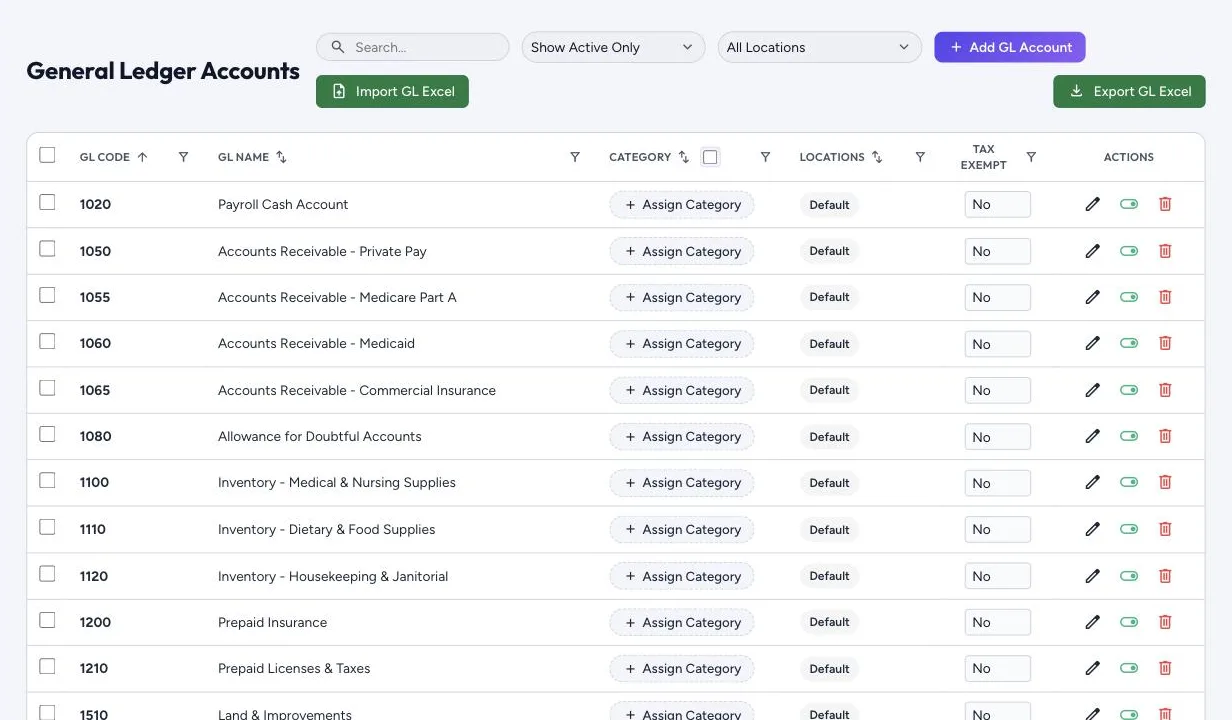
- Switch between the Default List, All Locations and a specific location to give one location different accounts.
- Add GL Account, Import GL Excel and Export GL Excel manage the list.
- Assign Category links an account to a category, so requisition and invoice lines get their GL account automatically.