Create a requisition
Build a cart from the order guide or the catalog, check the budget and send it for approval.
Start from Orders › Create Requisition, New Request on the dashboard, or Shop Catalogues at the top of the page if you’re allowed to order outside your order guides.
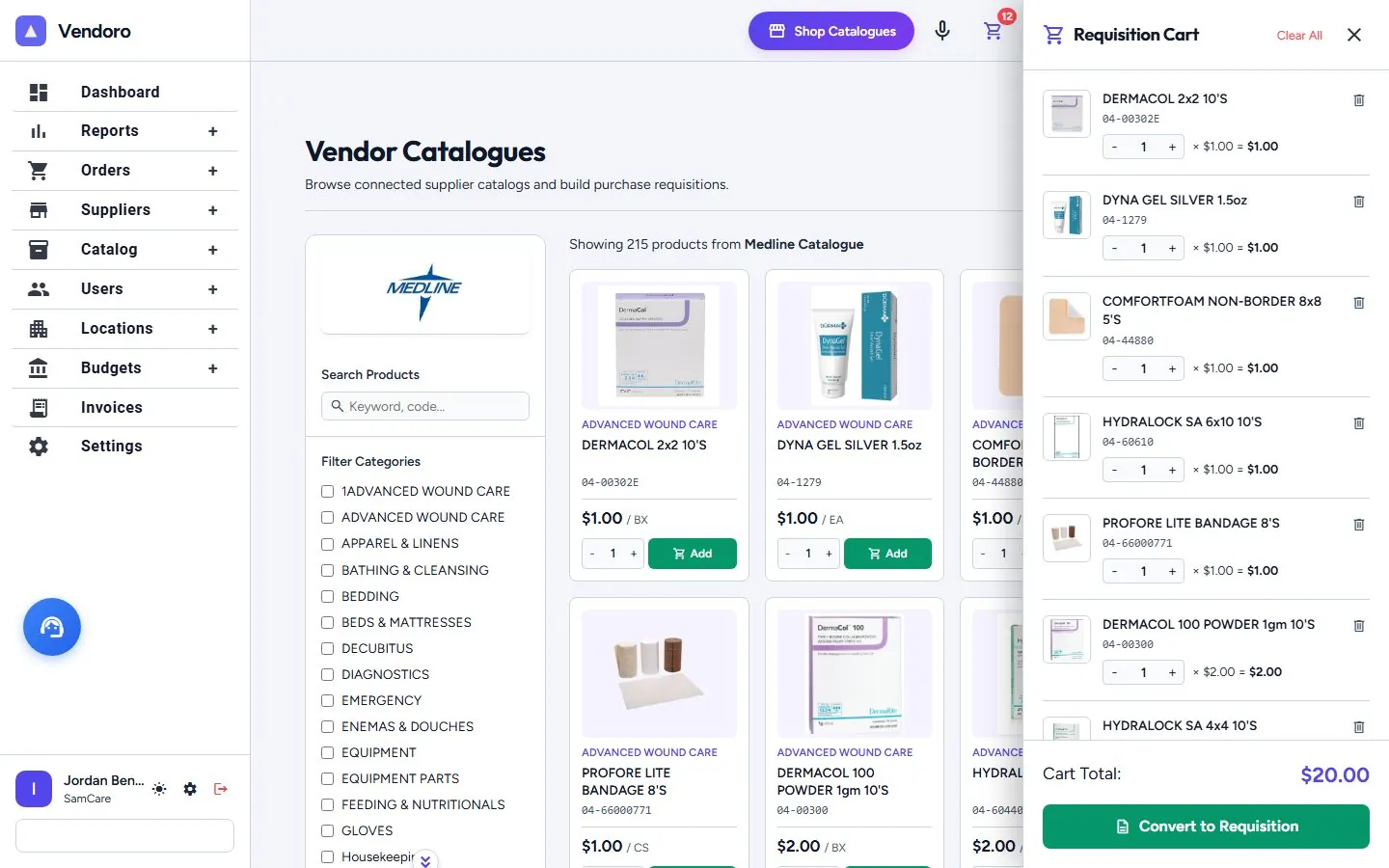
- Choose the basics: Location, Category, Who is this order for? and, if you like, an Order Guide. Click Next. A requisition is raised in your own name unless your role has the Create requisitions on behalf of others right.
- Add items from the order guide, or from the catalog if you may order outside your guides. Par and on-hand hints sit beside each item. Items that aren’t in the catalog can be typed in with Quick-Add. You can also order by voice.
- Check each line’s GL account. It’s filled in from the location’s setting or the category’s default, and you can change it.
- Watch the budget panel. It shows census and the PPD budget, and warns before sending if the order would go over. People without the right to see budgets get the warning without the figures.
- Check backorder warnings and the suggested substitutes.
- Save Requisition to keep a draft and see the approval steps. You can come back to a draft from Create Requisition.
- Send for Approval. The cart splits across suppliers automatically. If you can skip approval, or the order needs none, the button reads Create POs instead.
Items not on the order guide
Before sending, Vendoro lists any lines that aren’t on the location’s order guides. You can say why under Why are these needed? The order isn’t blocked; the approver sees the flagged lines and your reason. See Order guides.
You can also turn an order into a new guide with Create order guide from this order.
Pending requisitions
Orders › Pending Requisitions lists requisitions with who requested it, location, group, top-level category, total, budget impact (the share of the budget it uses) and status. Converted requisitions are hidden unless you filter for them, and budget impact shows only to people who can see budgets and prices. Filter by group, location, category, requester, status or date range. Approvers approve from here too; see Approve requisitions and invoices. When you open a requisition, it names its location and requester even if that location or person is inactive.
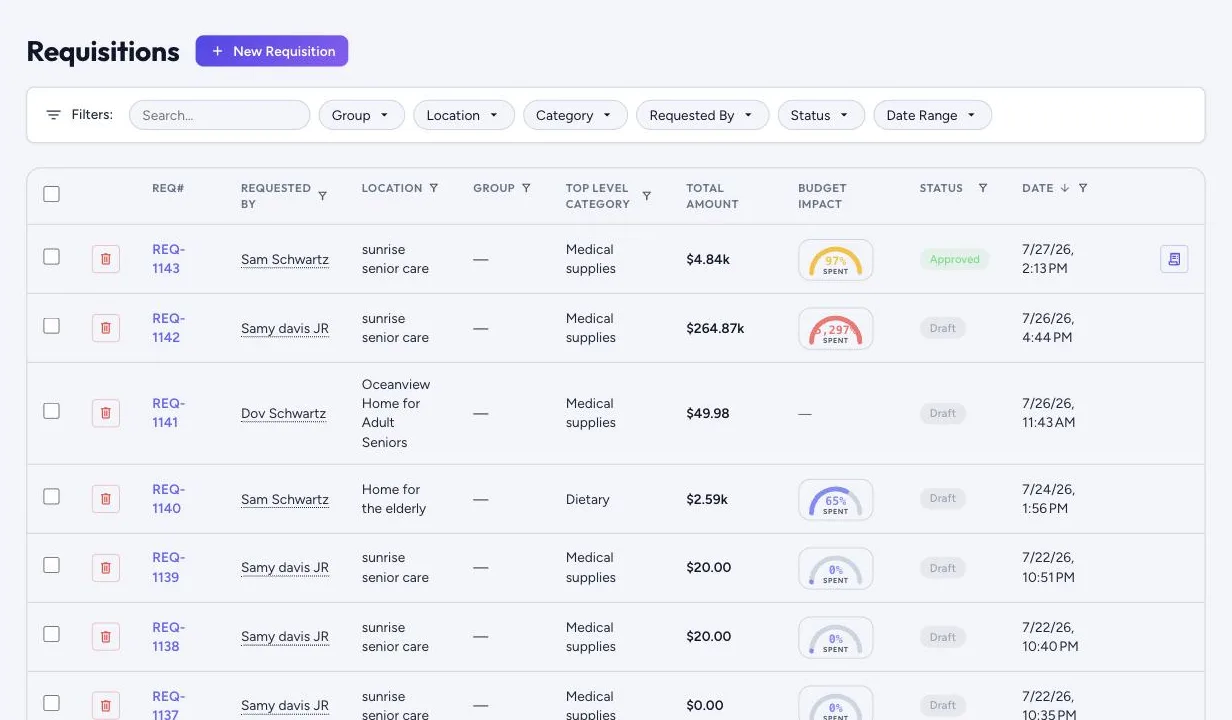
The over-budget warning doesn’t block the order. If your approval chain has an over-budget step, the order goes to that approver.