Set up a location
The eleven setup steps for a new building or community, from basic info to the summary.
Each building or community is a location. Budgets, order guides, approval chains and receiving all happen per location.
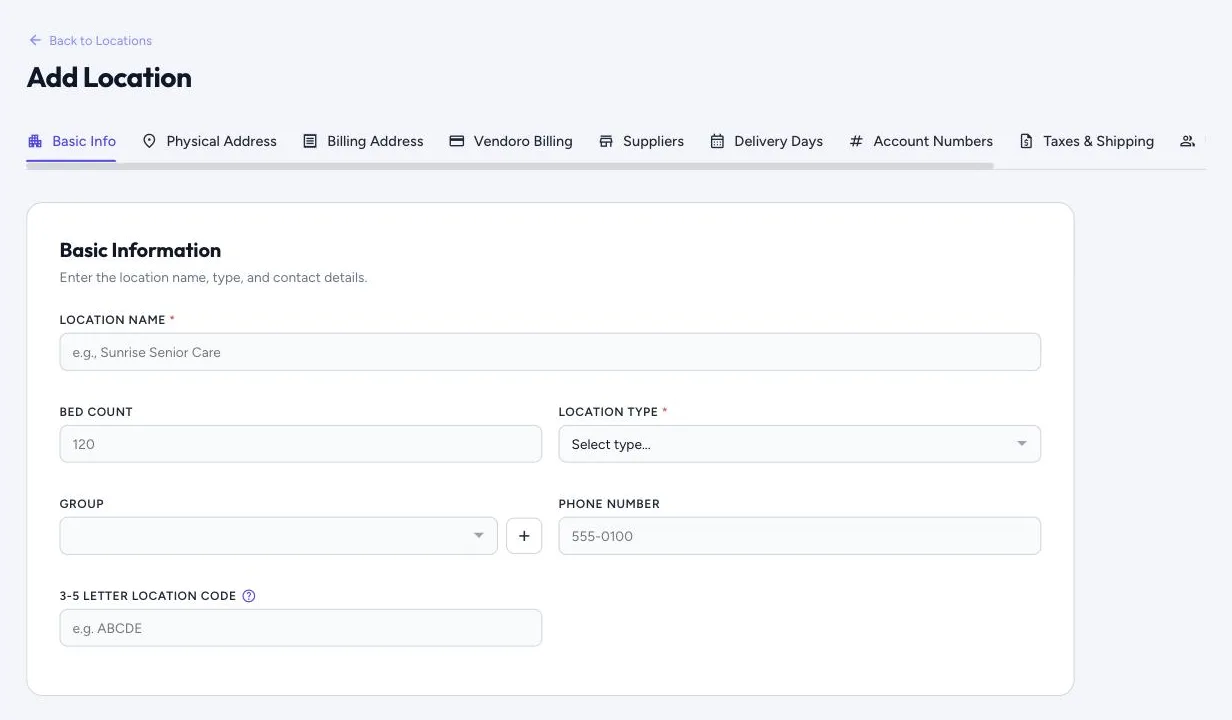
Go to Locations › Add Location. Setup runs in eleven steps; Next Step moves on and you can go back at any time.
| Step | What you enter |
|---|---|
| 1. Basic Info | Location name, bed count, location type, group, phone, and a 3–5 letter location code |
| 2. Physical Address | Where deliveries go |
| 3. Billing Address | Where invoices are addressed |
| 4. Vendoro Billing | How the location’s Vendoro subscription is billed: a card or bank account, or a request to your accounts payable contact to add one |
| 5. Suppliers | Which suppliers this location buys from |
| 6. Delivery Days | When each supplier delivers |
| 7. Account Numbers | The location’s account number with each supplier |
| 8. Taxes & Shipping | How tax and freight apply |
| 9. Users | Who works at this location |
| 10. Contract | The location’s agreement |
| 11. Summary | Check everything before saving |
Until payment details are added, no one can order for the location.
Location types: ALF, Clinic, Home Health, Hospital, Rehab Center, SNF, or Other.
Location code: the 3–5 letters you choose start every purchase order number for that location (for example OHA1095), so POs are easy to tell apart.
Location list and groups
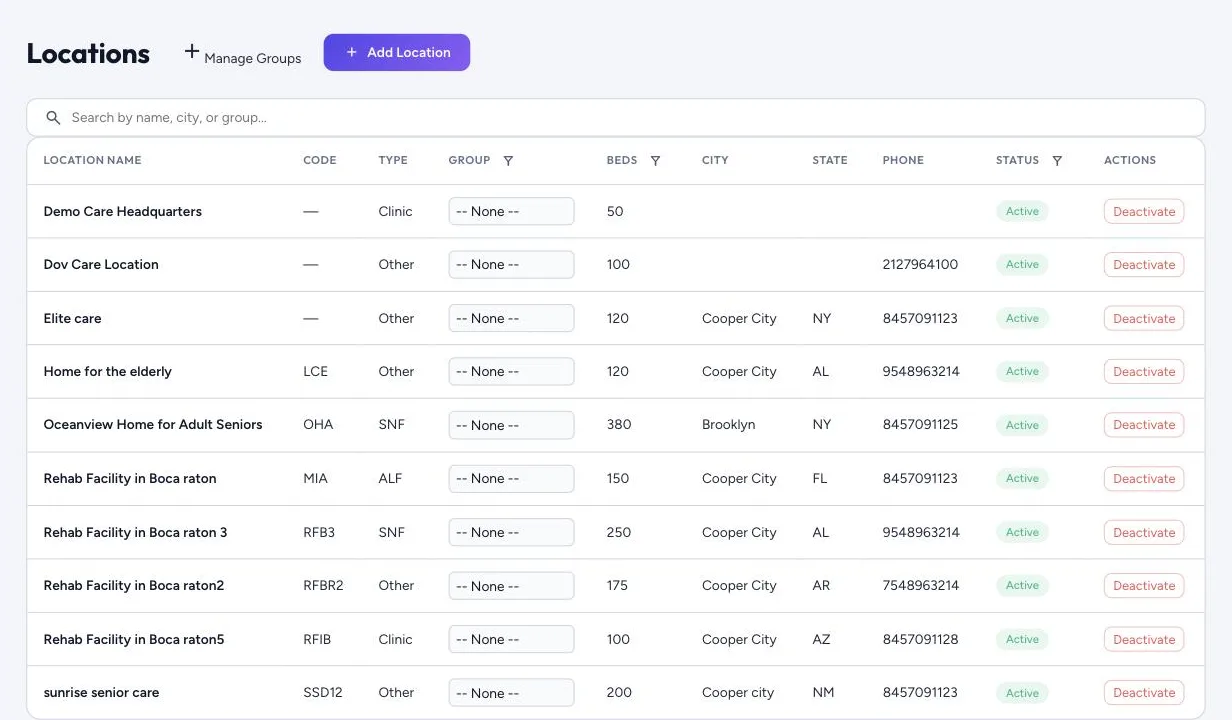
Locations › Location List shows every location with its code, type, group, beds, city, state and status. Manage Groups puts locations into groups, for example by region or legal entity. Groups filter the requisition and purchase order lists, pick locations for an order guide in one step, and let suppliers price by group.
Pricing is per location: $200 per location per month, with unlimited users, unless you’ve agreed a different rate.