Invoices and payment status
Invoice from the purchase order and follow it until it's paid.
Submitting an invoice
- In Orders, open the order’s Invoices and choose New invoice.
- Enter your invoice number, the invoice date, the quantities and unit prices you’re billing, tax, freight and an optional due date. Attach your PDF if you have one.
- Choose Submit invoice.
The invoice date can’t be in the future, the due date can’t be before it, and at least one line must be billed. If it looks like a duplicate, you’re asked before it’s sent.
You can Withdraw an invoice until the buyer approves it; the buyer then sees it as cancelled.
Returns: if the buyer has recorded goods as returned, choose Credit memo for returned goods. Each line can be credited up to the returned quantity, at the order price.
Following it
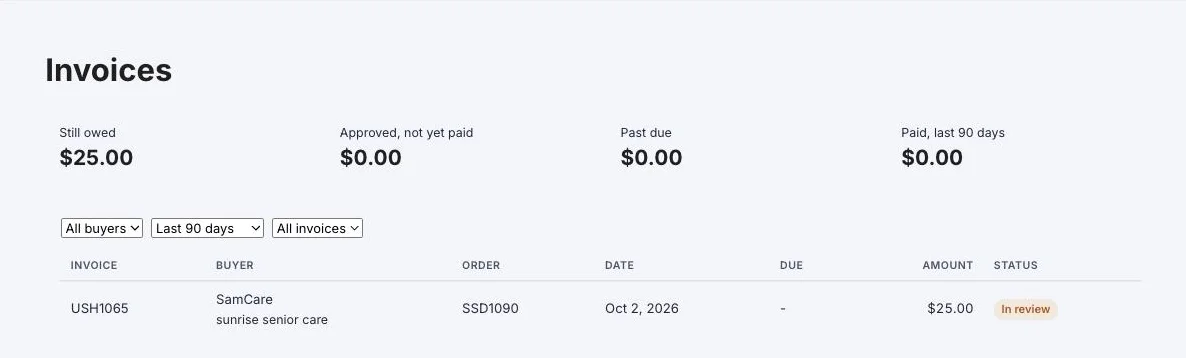
Each invoice moves through four steps on its way to payment:
- In review
- Approved
- Sent for payment
- Paid, with the date and payment reference
Hover over or tap an invoice’s status to see all four steps and where the invoice is now. Steps already done are greyed out, so what’s still ahead stands out. Two statuses sit outside the steps: Disputed - contact the buyer (the invoice stays in review until it’s resolved) and Cancelled.
Click an invoice number to open the invoice: its amount, dates, payment details, the steps, and your messages with the buyer. Click an order number to open the order.
The Invoices page totals what’s still owed, approved but not yet paid, past due and paid in the last 90 days, and you can filter by buyer, period (last 90 days, last 12 months or all time) and by still owed or past due.
Questions from the buyer
Buyer questions appear under Questions from buyers at the top of the Invoices page. Choose Open, then Send reply. The thread stays with the invoice.