What is Vendoro
How Vendoro works for buyers and suppliers, how to find your way around, and how access is controlled.
Vendoro is procurement software for multi-location operators, built first for nursing homes and assisted living. One order runs through one system: a requisition on the unit, approval, a purchase order to the supplier, receiving, the invoice, and an approved batch for accounting. Budgets are checked along the way.
Two places to work
- The buyer app, for your staff: unit managers who order, administrators who approve, purchasing, receiving and accounts payable.
- The supplier portal at vendor.vendoro.ai, where distributors and vendors keep their catalog and prices, confirm and ship orders, and submit invoices.
Finding your way around
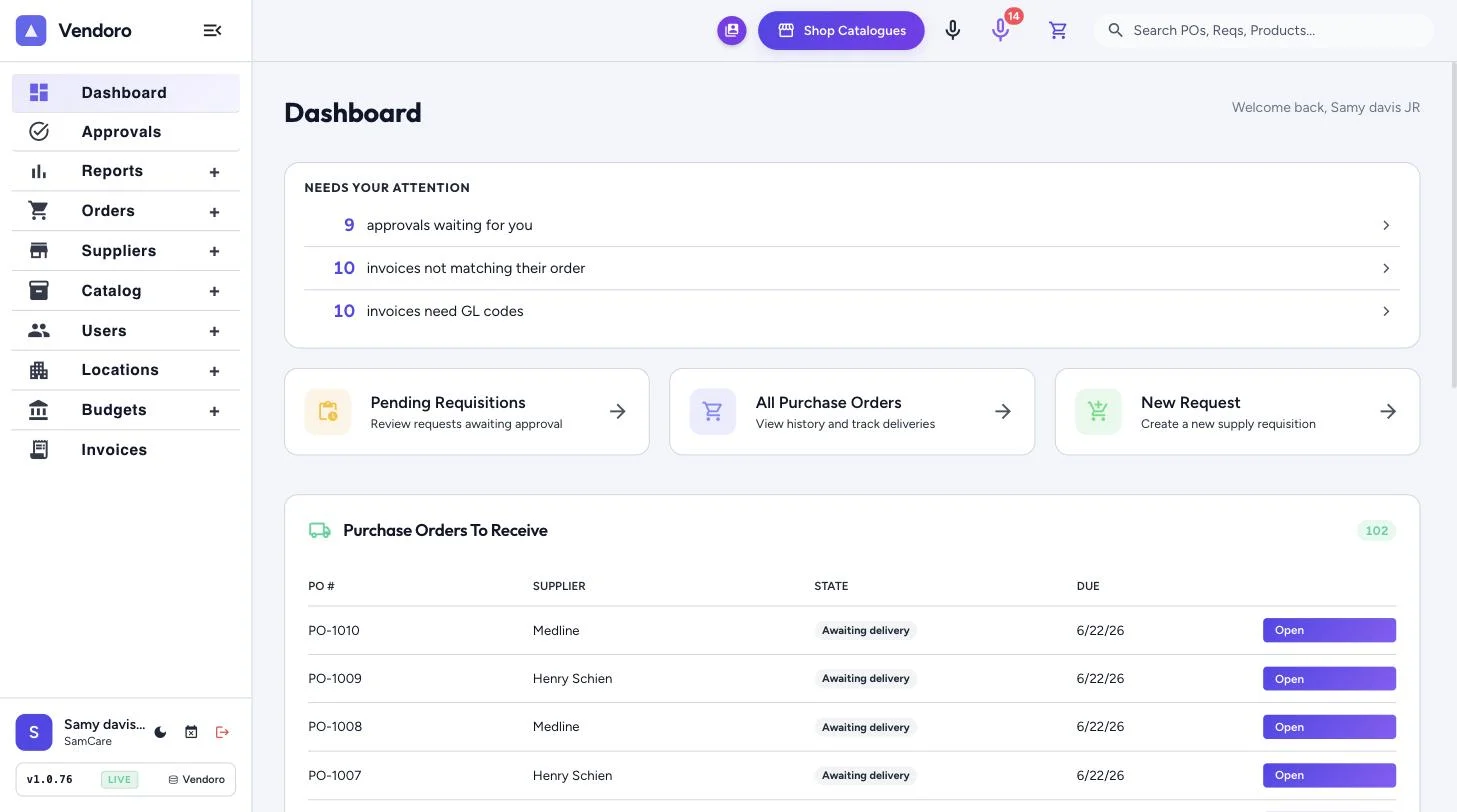
The menu on the left:
| Menu | What’s in it |
|---|---|
| Dashboard | What needs your attention, purchase orders to receive, budget and spend for the week |
| Reports | Reporting Dashboard, Standard Reports, Ask AI Reports |
| Orders | Create Requisition, Pending Requisitions, Backorders, Add guides, Edit guides, Purchase Orders, Receiving, Order Confirmations |
| Suppliers | Supplier Network, Supplier List, Add Supplier, Price by Supplier |
| Catalog | Products, Add Product, Uploads, Price by Supplier, Categories, Upload Categories, GL Accounts |
| Users | User List, Add User, Upload Users, Roles, Approval Chains |
| Locations | Location List, Add Location |
| Budgets | Dollar Budgets, PPD Budgets, PPD-Census, Budget Settings |
| Invoices | All Invoices, Emailed Invoices, Routing Rules, Export to Accounting, Accounting Setup, Invoice Settings |
| Platform Billing | Your Vendoro bill |
| Settings | Company details, logo and time zone |
Across the top: Shop Catalogues, the microphone for voice ordering, your cart, and a search box for POs, requisitions and products. At the bottom right: AI Chat, Support Chat and Voice Order. Next to your name at the bottom left: dark mode, Out of office (for people who approve), the Settings gear and sign out.
How access works
- Users see only the locations they are assigned to, unless they have unrestricted access. A user with no locations assigned sees all of them.
- Roles decide what each person can do, and you only see the menu items your role allows. See Users and roles.
- Times show in your company’s time zone, set under Settings.
- Each sign-in asks for a 6-digit code sent by email. Tick Remember this device to skip it next time.