Set up dollar budgets
Weekly or monthly dollar budgets per location, split across categories.
Go to Budgets › Dollar Budgets.
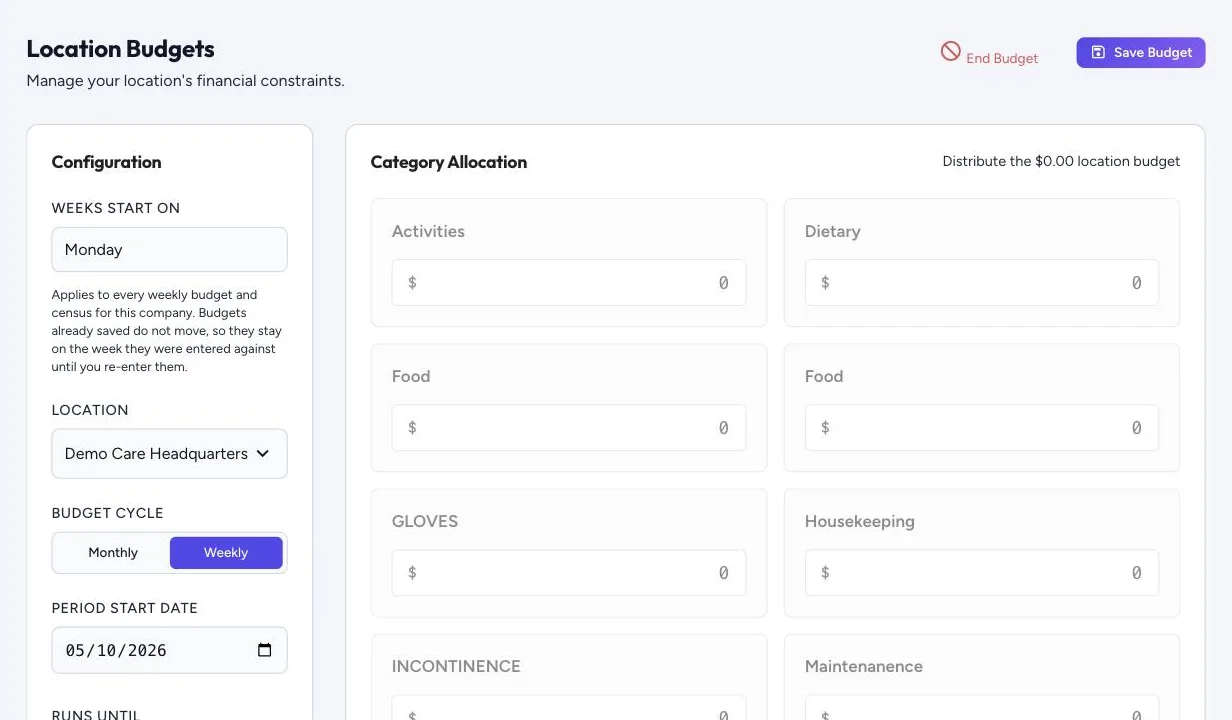
- Weeks Start On: pick the day your weeks begin. This applies to every weekly budget and census in your company. Budgets already saved stay on the week they were entered against.
- Location: choose the location.
- Budget Cycle: Monthly or Weekly.
- Period Start Date and Runs Until. Leave “Runs Until” empty and the budget runs until you replace it. Make ongoing clears an end date.
- The total first: a location with no budget yet asks how much it can spend per week or month in total, across all top-level categories. Enter the amount and choose Set budget. You can change it later under Total Location Budget, All Categories.
- Category Allocation: split the total across categories. Unallocated shows what’s left to assign. Splitting is optional; you can keep it all in one pot.
- Save Budget.
End Budget stops a budget from the period start date. For budgets that move with census, use PPD budgets.
The budget screens need the right to create, edit or delete budgets. Users who only see budgets while ordering don’t get them. Admins add rights under Users › Roles.
Budget settings
Budgets › Budget Settings decides what counts as spend, for every budget, the dashboard and the spend reports at once. Goods always count. Tick Count freight and shipping and Count tax to include those too, then Save. Changing them needs the right to create budgets.
When an invoice is approved, each line replaces the part of the order it bills, and the budget moves by the difference, in the order’s own period. A $1,000 order billed at $1,057.68 moves spend by $57.68. Both amounts are kept.